The idea starmap
Every idea you have, adrift. Drag to classify, link, and file.
The starmap is your own space. Your threads drift on it, slowly floating, draggable; fleeting notes queue by default on the ring of the inkstone at the centre, and once pinned they too become small free-floating draggable dots of ink.
It is not decoration. Changing a thread’s visibility and drawing links between ideas are mainly done on this map. A thread’s own page has openings too: on an ongoing thread you are answering yourself, the author area can publish or withdraw it; on a closed thread, the “Visibility” control at the bottom can be adjusted (a thread that closed as “Answering myself” cannot be made public again, see You can go back and forth); and on your own ongoing ordinary thread, “Link to another of mine” in the author area draws a link.
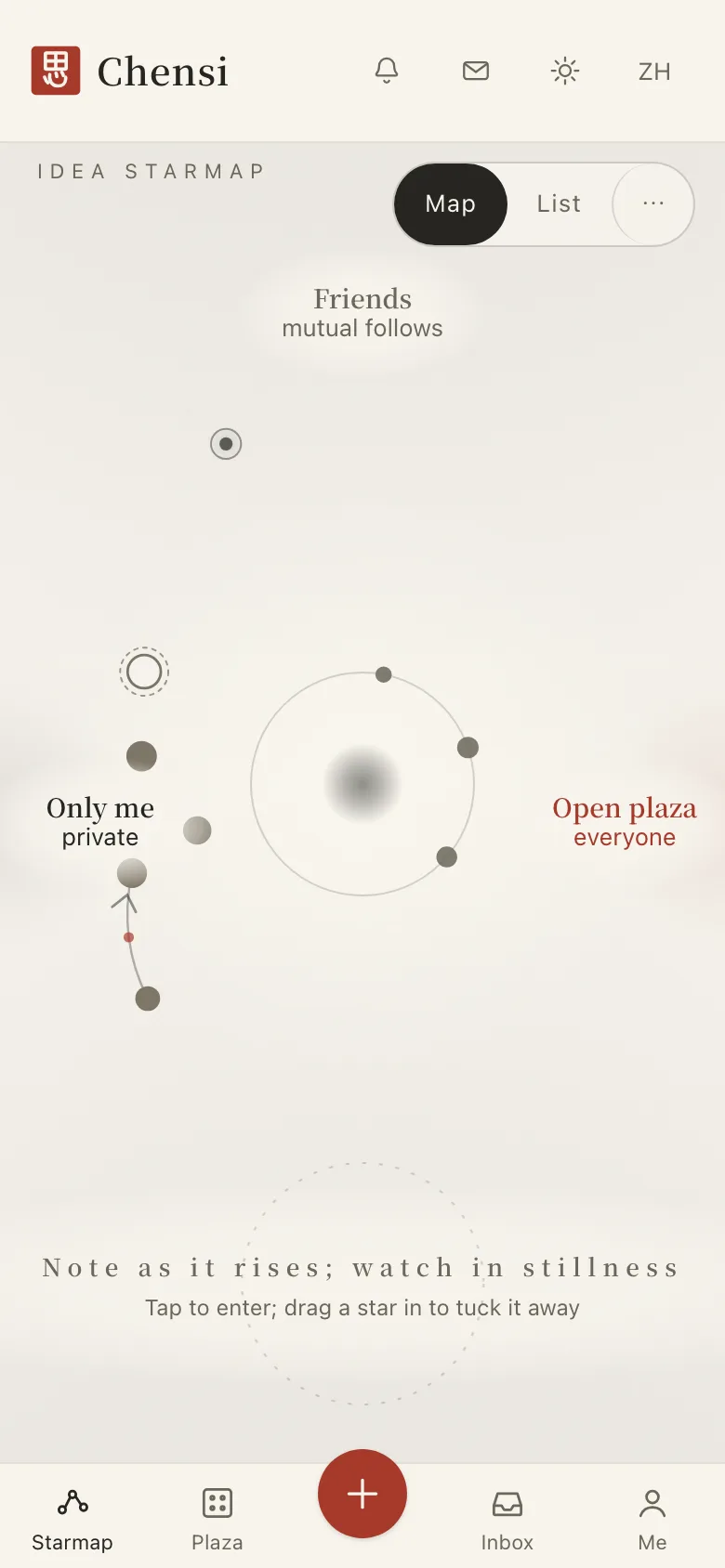
Want to see what is in your head, relate two ideas, publish or withdraw one, or tuck finished thinking away — it all happens here. If you only ever jot notes, you can never come.
Three kinds of star
- Fleeting note (queued on the inkstone)
- No longer does each claim a patch of sky — they queue on the inkstone’s ring by default, newest first, and the overflow sinks into the well (not lost, just off-stage). A tap goes straight to the shaping page; a long-press can pin one, and only then does it become a small free-floating dot. Notes take no visibility band, draw no links, and cannot be tucked into the inner world — shape first.
- Thread (ink set)
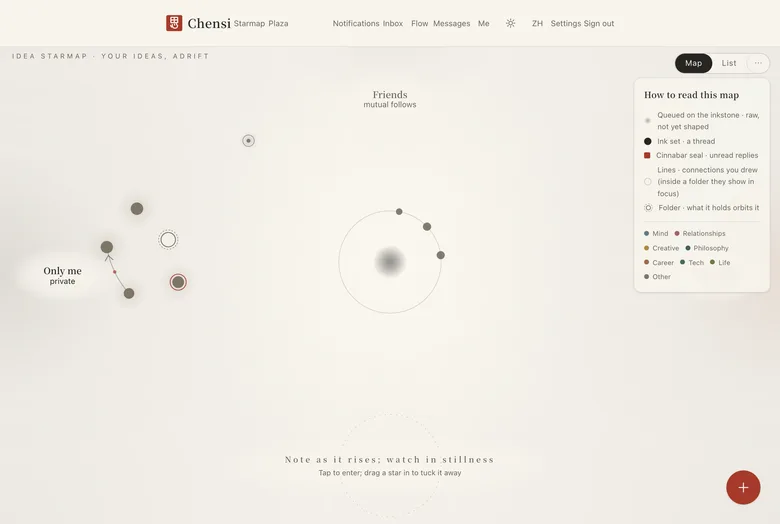
- A solid dot of ink. The ball’s size says only what it is: note smallest, thread in between, folder largest — nothing more; the brighter the halo, the more responses. A small cinnabar square at the lower right means unread responses wait on this one (it goes dark once read); a closed star wears a thin cinnabar ring; a selected ball in multi-select wears a solid cinnabar ring.
- Folder (paper-colored hollow ball + dotted rings)
- Paper-filled, one pale ink ring, a few dashed orbits beyond — it is a vessel that holds things, not a darker star. Folded, it is one ball; focused open, the ink it holds circles it ring by ring (inner rings more fundamental, overflow sunk into the ball), and the whole cluster collides with other stars as one body. A tap enters focus (see the gesture table below). See Folders.
An ordinary star is colored by its topic — eight topics, eight Chinese mineral pigments; a branch you grow under a topic borrows its parent’s pigment one shade apart, so stars of one family always sit close; folders take no topic color (they have none) and are drawn paper-filled with a pale ink ring — structure one shade lighter than content, told apart at a glance. The legend “How to read this map” at the top right spells the whole code out (desktop only).
Three basins, one gate, one erase pool
- Left: “Only me / private”.
- Right: “Open plaza / everyone”. The band name is tappable and goes straight to the plaza.
- Top: “Friends / mutual follows”. Tappable too — to the Friends lane of the plaza.
- Bottom center: a gate inscribed “Note as it rises; watch in stillness”. Tap it to enter the inner world; drag a star into the circle to tuck it away.
- Lower left: the erase pool, “Erase / gone for good”. It surfaces only while you drag; the rest of the time it is not there.
Whichever basin a thread star is dropped into, that is its band. See Three audience bands.
The inkstone: where notes queue
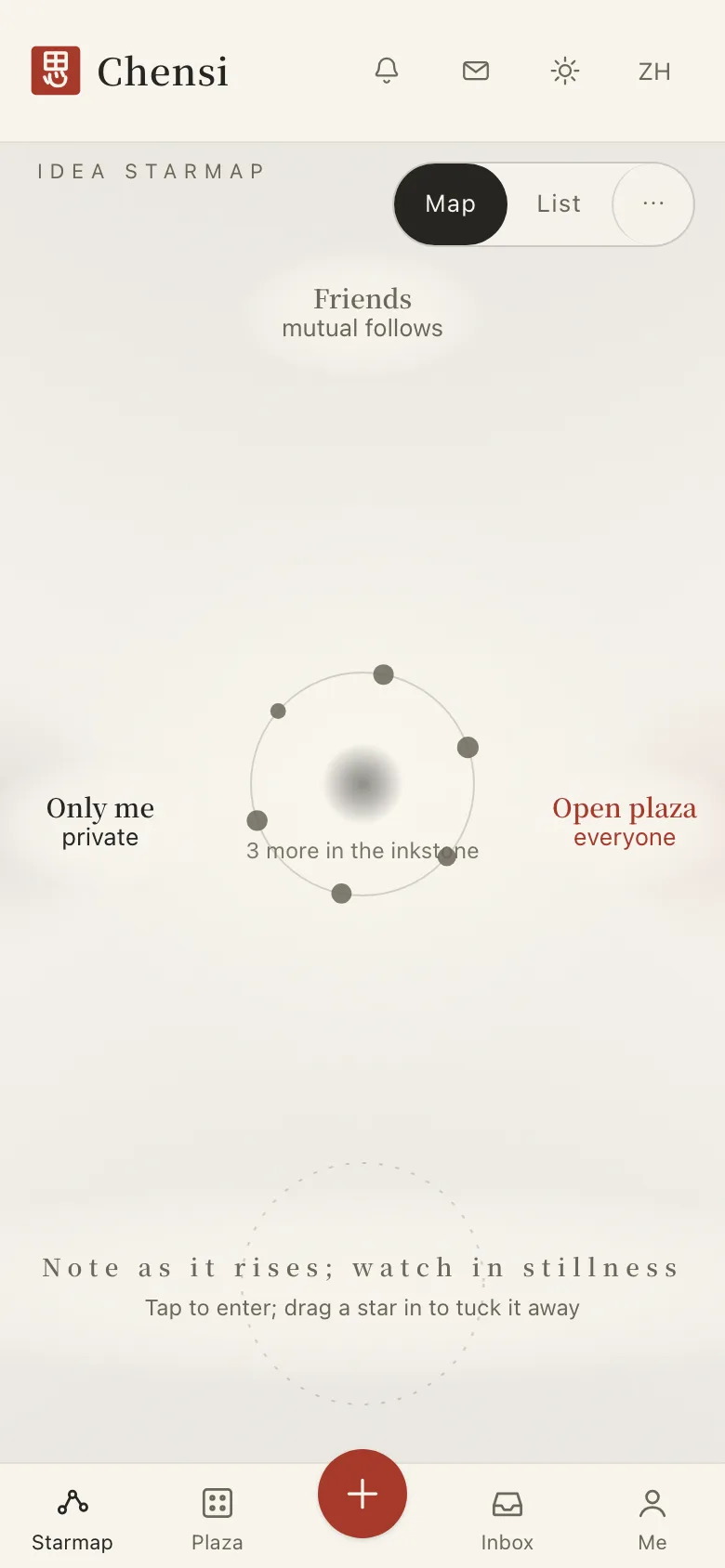
An inkstone sits at the centre of the map. Your notes queue on its ring by default, newest first; slots number six on a phone and ten on desktop, and the overflow sinks into the well — not lost, just off-stage, with “{n} more in the inkstone” written beneath the pool.
- Tap a dot on the ring: into the shaping page.
- Drag along the ring: pages through the queue, stopping wherever you let go; it does not wrap at either end.
- Drag a dot outward a stretch and release: pinned — it leaves the queue and becomes a small free-floating dot in the sky; dragging it back onto the ring or the pool sinks it in again, the turntable auto-rotating to its old slot.
- Long-press a dot (queued or pinned): multi-select, and the bottom bar offers “Pin” or “Back to inkstone” depending on which kind is picked.
- Tap the pool itself: enter focus — the ring enlarges, slots grow to twelve on a phone and twenty on desktop, and stars outside step to the edges. Tap the pool again while focused: only a second tap within 3 seconds jumps to the inbox; tapping elsewhere cancels and changes nothing.
- Tap blank space / Esc / double-tap blank: leave focus, back to the full view.
Gestures
| What you do | What happens |
|---|---|
| Drag a star | Moves it. Onto a basin or the gate to change visibility; onto another star to link (except two inside the same folder — see below); onto a folder to file it in. In focus, dragging a member to another ring changes its level; only past the outermost ring and further out takes it out. |
| Click a star (desktop) | Opens it. |
| Tap a star (touch) | One step: opens it directly, same as the desktop click. (The preview card belongs to the desktop mouse alone — touch has no hover, so it should not pay an extra tap to fake one.) |
| Click a folder | Enters focus: the camera pushes in until the cluster takes up to about seventy percent of the viewport’s short side (very small clusters reach less, capped by the 3× zoom limit), and only now does the ink inside swing onto its orbits (ringed and leveled, inner more fundamental). Stars outside are pushed wholly out of view (since 2026-09-02; no longer “left peeking a third at the edge”), and while focused they cannot be tapped. |
| Tap the folder again while focused | The first tap only selects: a wash of ink halos the ball and “Open folder” appears beneath. A second tap within 3 seconds jumps to the folder’s own page; tapping elsewhere cancels. The first tap changes nothing. |
| Drag a member to an inner/outer ring in focus | Changes its level: it settles onto that ring on release; inner rings are more fundamental. |
| The orbits’ slow turning | Every ring turns extremely slowly, inner faster than outer (90 to 300 seconds a lap); hold any star in a ring and that ring pauses, resuming from the same spot on release. With the system’s “reduce motion” on, everything stands still. |
| Tap blank / Esc / double-tap blank while focused | Leaves focus: the camera returns to the full view and every star to where it was (their positions were never changed — focus only laid a temporary force over them), and the folder folds back into a ball on the spot. |
| Zoom / pan while focused | Works as usual and does not leave focus — the camera is yours. |
| Hover a folder (desktop) | The small card carries “Open” (to the folder’s page) and “Expand / Collapse”. “Expand” is entering focus, “Collapse” leaving it — there is no second kind of expanded state on the map, and none of it is recorded anywhere. |
| Hold any star for 0.5 s (press and keep still) | Enters multi-select. That star is selected on the spot; folders cannot be selected — the map explains why (no folders inside folders). Notes can be selected — queued on the inkstone or pinned — and once picked the bottom bar offers “Pin” or “Back to inkstone”. With exactly two ordinary stars selected the bar adds “Link these two” — that is also how two stars inside one folder get linked. |
| Tap a star while multi-selecting | Adds / removes the selection. |
| Tap blank while multi-selecting (or the bar’s “Cancel”) | Leaves multi-select. |
| Desktop shift + click | Multi-select directly, no holding needed. |
| Drag a star onto a basin | Changes visibility. |
| Throw a star onto another star | Draws a link. Before release the target’s rim lights up with a dashed cinnabar ring. A link speaks only of relation — no hierarchy, no change to ball size; once both sit in one folder, the line is visible only inside focus (drawn short, and openable). Two stars inside the same folder do not link this way: dragging a member in focus changes its ring only when you drop it on a different ring; released on the same ring it returns to where it was (on a dense ring — 8 on ring 1, 20 on ring 3 — the link hit area would cover the ring-change drop points, so no linking is guessed here); released on the same ring on top of a neighbour, the map points you to multi-select — hold one, tap the other, then “Link these two”. |
| Drag a thread star into the bottom gate | Tucks it into the inner world. |
| Drag any star into the erase pool at lower left | Deletes (with a confirmation, and this one cannot be turned off). |
| Throw a star onto a folder | Files it into that folder (a ripple spreads from the cluster’s heart, and the ball swings onto orbit). |
| Drag a folder | The whole cluster travels together, members keeping formation. |
| Drag a member past the outermost ring and a bit further | Release takes it out of the folder (moving between rings inward or outward does not count). Dropped onto a basin, the gate, the well, or another ball, those actions take precedence — it is not also removed. |
| Wheel / pinch | Zoom. Floor is “everything fits”, ceiling 3×, anchored at the pointer. |
| Drag blank space | Pan. When the world exactly fills the screen it will not budge (on a phone a vertical swipe turns into page scroll). |
| Double-tap blank space | Back to the default view (not “everything on screen” — that belongs to the “Overview” button at lower right). |
| Hold blank space 0.6 s / right-click blank (desktop) | New folder here: a small panel asks only for a name, and the finished folder first appears at the point you pressed, then drifts slowly toward its band’s place like every star (a new folder is “Only me”). Not accepted in the overview band (not the long-press route). |
| Tap a star in the overview band | Zooms to it, does not open. See “When stars multiply” below. |
| Hover a star | A small card: topic, visibility, title. |
| Hover a line that carries a note | A small card shows the note. |
| Tap a line | Opens that connection’s settings: relation kind, direction, note. |
No dragging while multi-selecting: in that mode a gesture means exactly one thing — “who is picked” — so classifying, linking, deleting, and pulling out of clusters all step aside. After you leave multi-select, everything is as before. The bottom bar, too, exists only in multi-select and takes no room otherwise.
Names pass two gates (the Obsidian approach: show text only when zoomed enough). The first is the camera: below 1.4× not one name is drawn, folders included — an overview wants the shape of things, not a screenful of small type. The second is the ball itself: past 1.4×, a radius under 8 pixels still draws only a dot; above 8, the name fades in. Names longer than 14 characters are cut.
When stars multiply: the world grows
The canvas is not the screen. Your world stretches by “how much room each ball needs” — more balls or bigger balls, a bigger world; at twenty-odd threads the world is exactly the screen, as it always was. On entry the camera finds a balanced framing: if everything fits, it fits all; if not, it does not shrink without bound (0.6× at the least — smaller and balls could be neither tapped nor told apart) and instead opens a window onto the stretch you have been working in. An “Overview” button then appears at lower right; only tapping it zooms out to “everything on screen”.
- Double-tap blank returns to the default view; “Overview” is a different action and is not remembered on this device.
- The camera (zoom and position) is remembered on this device; reopen and you are back at your last glance.
- The overview band (zoomed rather far out, or after tapping “Overview”; once you have enough stars — roughly a hundred and up — walking in lands you in the overview by default): the whole map changes how it draws — balls at 0.45× (2 pixels minimum), not a single word, no lines, no halos and neither seal, folders reduced to a tiny double-ring landmark. Tapping a star zooms to it rather than opening; with two or more under your finger it still zooms only one step. Dragging, long-press multi-select, and long-press on blank are all off in this band — targets are a few pixels wide and a slip costs too much. On desktop the cursor becomes a magnifier here.
- Zoom back in (balls big enough) and the everyday map returns: tap to open, hold to multi-select, drag as usual. Between bands there is no toast, no animation — the change is quiet.
How lines are drawn
- Between two threads in the same band: a springy curve — drag one end and it swings with your hand, settling after a couple of swings on release.
- Across bands (one private, one public, say): no whole line; each end gets a short pin pointing at the other, with the relation kind labeled beside it. Hover either ball or pin and the whole line appears.
- The overview band draws no lines at all — that band reads the shape of things, not the relations.
- Between two threads in the same folder: invisible unfocused (the members are off the map entirely); inside focus, drawn as a short line between the two points, openable and severable. Between a member and its own folder there is still no line — the orbit is the belonging; a line would say it twice.
- A link across folders: while focusing this folder, the line is drawn to the other folder ball (with a small relation tag); tapping it is a two-step confirm into the opposite focus — the opposite members are never hoisted onto the map for one line.
A folder is normally just one ball
Phone or desktop, at any zoom, a folder on the starmap is one ball. Only the currently focused folder opens into a cluster, folding back the instant focus leaves. So there is no “which ones are expanded” to remember — no such state exists on the map, hence no “expanded here, folded there” disagreement between devices. (The list view’s tree is another matter: its expanding only governs the list and is remembered on this device.)
The list view
Top right toggles “Map / List”; the “⋯” beside it holds “New folder”. The list is a file tree: folders on top (by name), unfiled ink after (by latest update). A folder row reads “▸ Name · {n}”; tap to expand, members indent one level; collapsed by default, and which ones you opened is remembered on this device alone.
- Each row’s trailing “⋯”: members can be taken out, folders renamed, unfiled ink filed into a folder (the same panel as on the starmap).
- A folder row also carries “See on the map”, which switches back and focuses straight onto that cluster.
- Keyboard: up/down move between rows, right expands, left collapses (on a member, left returns to its folder), Enter opens.
Scale limits
The map draws at most 150 threads and 150 fleeting notes, with at most 600 links (folder membership is another ledger and not counted here). Past that, the top of the page says “Showing recent thoughts only”. Closed threads stay on the map (with the cinnabar ring); only those tucked into the inner world leave.
The small print
- Falling-ink animation
- The thread you just publish gets one drop of ink falling from the top of the canvas, blooming where it lands. Once only.
- Camera memory
- Zoom and position are remembered on this device (not synced elsewhere); the “Overview” tap is not remembered.
- Keep-out zones
- The legend card, the “Jot down” seal, the words on the gate, and the three band names — stars flow around them and never settle underneath.
- Reduced motion
- With the system’s “reduce motion” on, the map forms statically — no animation, no dragging.
- Empty state
- With nothing yet: “No thoughts yet. Tap ‘Jot down’ — your first fleeting note will fall into your nebula.”
- Failure does not masquerade as empty
- If any query fails, the page says loading failed — it does not dress up as “you have no thoughts yet”.
Related pages
- Three audience bands Only me / friends / the plaza. Dragged, and reversible.
- Links and three relations Drag one star onto another. Then say what the relation is.
- Hierarchy and folders Press and hold a few stars, file them into a folder; hierarchy is the orbits inside it.
- The inner world Where you file the thinking you are done looking at. Take it back anytime.
- Keyboard, gestures, touch What the keyboard can do, and where touch differs from desktop.